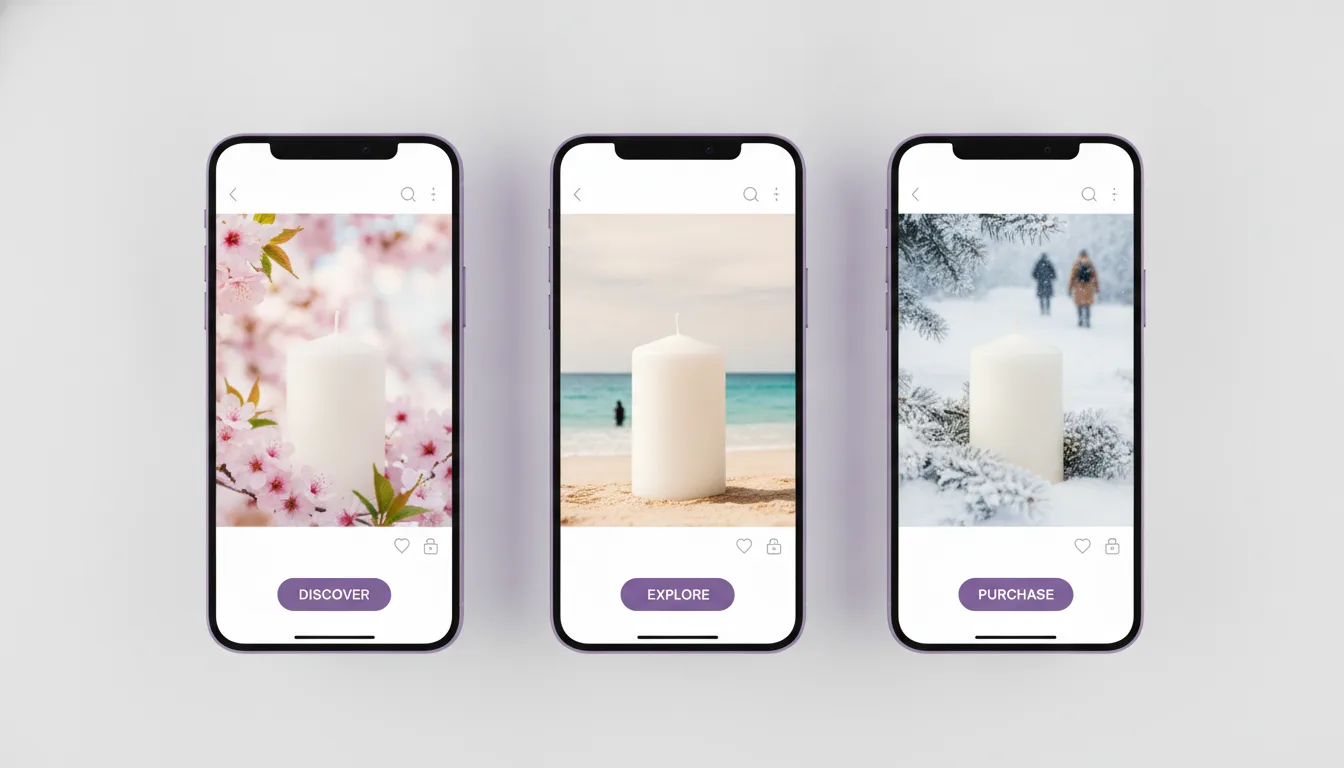
An AI product photography tutorial for 2026 comes down to one rule: start from a real photo of the product and use the image model only for the scene, light and composition around it, never to redraw the product itself. In practice that means five stages: a clean reference shot, a cut-out, a reference-based edit in a model such as FLUX.1 Kontext, OpenAI's GPT Image or Google's Gemini image models, a fidelity check against the real product, and export to the exact sizes each channel asks for.
Key Takeaways
- Feed the model a real reference photo of the product every time. Text-only prompts invent labels, caps and proportions that do not exist.
- Use editing models (image plus instruction) for product work and keep pure text-to-image models for backgrounds, moods and props.
- Budget more time for checking than for generating. Label text, logo shape and colour are where AI product photos fail, and those failures are what customers notice.
Need static ads made at scale? Adsome makes performance image and video ads from your real product.
What is AI product photography?
AI product photography is the practice of producing product images for shops and ads with generative image models instead of, or alongside, a studio shoot. The product comes from a real photograph, and the model builds or changes everything else: background, surface, lighting, props, hands, models and setting.
Two kinds of model do this work. A text-to-image model generates a whole picture from a written prompt. An image editing model (sometimes called an instruction-based or reference-based model) takes one or more input images plus an instruction, and changes only what you ask for. For product photography the second kind does the heavy lifting, because the product has to stay the product.
Which tools to use for which job
Pick the model by the job the image has to do.
| Job | Model type | Examples | What the input looks like |
|---|---|---|---|
| Clean packshot on white or a flat colour | Background removal plus compositing | Any cut-out tool, then your editor | 1 real photo |
| Product placed in a styled scene | Image editing with reference | FLUX.1 Kontext, GPT Image edits, Gemini image editing | 1 to 3 reference photos plus an instruction |
| Lifestyle shot with hands or a person | Image editing with reference, then retouch | Same as above | Product photo plus a pose or scene description |
| Mood backgrounds, textures, props | Text-to-image | Any strong text-to-image model | Prompt only |
For a quality comparison between models, see our guide to the best AI image model for ecommerce product photos. The process below stays the same whichever you choose.
Step 1. Shoot a reference photo that the model can trust
The reference photo is the single biggest factor in the result. A model cannot recover detail that is not in the input.
- Place the product on a plain, matte surface next to a window or under a large diffused light. Avoid direct sun and the camera flash.
- Shoot on the phone's main lens (not the ultra wide), at the angle you want in the ad.
- Take a straight front shot with the label readable, a three quarter angle, and the detail that sells it.
- Fill most of the frame with the product so the label has as many pixels as possible.
- Check that the label text is sharp when you zoom in. If you cannot read it, the model cannot either.
Shiny products (glass, metal, gloss) need a white card opposite the light, because reflections in the reference come through as highlights that fight the new scene.
Step 2. Cut out the product and keep a master file
Remove the background and save the product on transparency as a PNG master. It is the model input, the plain packshot and the layer you paste back if the model damages the label. Our walkthrough on removing and replacing backgrounds with AI covers the edge problems (hair, glass, fine straps) in detail.
Keep it at full resolution and check the edge at 200 per cent.
Step 3. Write the edit instruction in a fixed order
Editing models follow short, ordered instructions better than long poetic prompts. Use the same five-part order every time so results are comparable between runs.
- Lock the product. "Keep the bottle, label, cap and colours exactly as in the reference image."
- Set the surface and setting. "Place it on a pale travertine bathroom shelf."
- Describe the light. "Soft morning window light from the left, gentle shadow to the right."
- Give the camera. "Eye level, 50mm look, shallow depth of field, background softly out of focus."
- Reserve the space. "Leave the top third of the frame empty for a headline."
A worked example for a skincare serum:
Keep the dropper bottle, label text, cap and glass colour exactly as in the reference. Place it on a wet pale stone surface with two small eucalyptus leaves behind it. Soft daylight from the upper left, a faint caustic reflection on the stone. Eye level, close crop, background softly out of focus. Leave the top third of the frame clear.
The last line matters. An ad needs room for a headline or offer, and a model fills the frame with props unless told not to. Our article on static ads for Meta made with AI images shows how that reserved space turns into a finished ad.
Step 4. Generate in small batches and choose with a rule
Generate four to eight variants per scene, not fifty. Then pick with a fixed rule instead of taste:
- Discard any image where the product shape, size or colour has changed.
- Discard any image where the label text is wrong, even by one letter.
- Of the rest, keep the one where the light on the product matches the light in the scene. Mismatched shadows are what makes a composite look fake.
- Only then judge mood and styling.
If every variant changes the product, the instruction is too loose or the reference too small. Crop the reference tighter and repeat the lock line at the start and the end of the instruction.
Settings worth knowing: OpenAI's image API has an edit endpoint with an input fidelity option for keeping reference detail, Google's Gemini image models take several input images and an aspect ratio, and FLUX.1 Kontext takes an image plus a text instruction. Check the current docs, because settings change between versions.
Step 5. Check fidelity against the real product
This step decides whether the image can run.
- Put the AI image and the reference photo side by side at the same size.
- Read the label word by word, including the small print and the volume.
- Compare the logo shape, not only its colour.
- Check proportions against a hand or a cup. Products often come back larger or smaller than life.
- Sample the brand colour in both images. Models drift colour towards the scene.
- Look where the product touches the surface. No contact shadow is the most common giveaway.
Step 6. Repair the label instead of regenerating
When the scene is right but the label is damaged, do not regenerate. Paste the product from your master cut-out over the generated one, match the perspective, then add a soft contact shadow and a little scene colour on the edges. The real label stays pixel for pixel.
Headline, price and offer go on as a separate layer in your design tool. A typo in a price is not something to find after the ad is live.
Step 7. Export to the sizes each channel asks for
Cropping a finished square later usually cuts into the product.
| Placement | Aspect ratio | Common size in pixels |
|---|---|---|
| Meta feed | 1:1 or 4:5 | 1080 x 1080 or 1080 x 1350 |
| Meta Stories and Reels | 9:16 | 1080 x 1920 |
| Amazon main image | Product on pure white, product fills about 85 per cent of the frame | Longest side at least 1000 recommended for zoom |
Generate a separate version for each ratio with the reserved space in the right place, rather than cropping one master. Check the official Meta Ads Guide for the current specifications before export, since Meta updates them.
Amazon asks for a pure white background on the main image, with no added text, logos or props that are not part of the product. Use AI scenes for secondary images and ads, and keep the main listing image a clean cut-out.
Step 8. Keep the provenance data and label honestly
OpenAI adds C2PA metadata to its image output, and Google adds an invisible SynthID watermark to images from its Gemini image models. Meta has said it labels content as AI made when it detects signals like these. Do not strip the metadata to avoid a label. Showing a product better than the real thing is a consumer protection problem in the UK and the EU, AI or not.
What we see in our own production
This is Adsome's own observation from producing AI image ads, with no figures attached. The images that fail review are almost never rejected for looking artificial. They fail because the product drifted: a cap with a slightly different shape, a label with the right colours and the wrong words, a jar a size larger than it should be next to a hand. For that reason our check order starts with the product and ends with the scene, and a beautiful image with a wrong label is treated as unusable, not as nearly done.
The second pattern is that the reference photo decides more than the model choice. A sharp, evenly lit phone photo in an average model usually beats a poor photo in the newest one.
Best for
- Small DTC brands without a studio budget. Shoot good reference photos once, then build scenes with an editing model. Our guide to AI product photography without a studio goes further on the shooting side.
- Brands testing many ad concepts. Use the fixed instruction order and small batches so scenes compare fairly.
- Marketplace sellers. Keep the main listing image a real cut-out on white and use AI scenes only for secondary images.
- Products with fine text or complex packaging. Generate the scene, then always paste the real product back in.
- Teams moving into video. The same stills become the start frames for AI video generation from a product image.
Common Mistakes
- Prompting the product from text. The model invents a plausible product that is not yours.
- A low resolution reference. Small labels come back as made-up letters.
- Judging on mood first. Pick on fidelity, then style.
- One square cropped for every placement. Generate per ratio instead.
- Price and offer inside the generated image. Add text as a layer.
- Stripping provenance metadata. It creates a trust problem.
Need static ads made at scale? Adsome makes performance image and video ads from your real product.